Screen Capture records what's on a workstation's screens, every monitor, while someone is working. A small program, RockRecorder Screen Capture, runs on each Windows workstation and sends the changes on screen to RockRecorder, where each workstation is its own channel.
You need to be a SuperAdmin, and the server needs the Screen Capture license, which sets how many workstations can be recorded.
How it works
- The workstation connects out to RockRecorder over HTTPS (port 443). Nothing on the workstation is opened to the network.
- It records only while there's activity: motion on screen, keyboard or mouse input, or both, as chosen in the settings. A blinking cursor or a clock doesn't count as motion.
- Each stretch of activity is one recording, ending after a set time with no activity.
- If RockRecorder can't be reached, the workstation keeps what it records (up to 500 MB) and sends it when the connection is back.
1. Add the Screen Capture interface
- Open the user menu (top right) and go to Administration > Recording > Recording Interfaces.
- Click New recording interface, give it a name and choose Type: Screen Capture.
- Click Create interface at the bottom of the page.
Before workstations can install the program, the server needs it: go to Administration > Updates and, under RockRecorder Screen Capture, upload the .rragent file that comes with your license (Upload & check, then Install).
2. Install it on each workstation
On the interface's Workstations tab, click Install on a workstation and Download the setup program. On the workstation (Windows 10 or later, 64-bit):
- Run RockScreenCaptureSetup.exe.
- Enter the RockRecorder server's address, the one you open RockRecorder at in a browser, without
https://(for examplerecorder.example.comor192.168.1.50). - Finish. The last page shows the workstation's Agent ID.
To install on many workstations at once with Group Policy, Intune or PDQ, use the silent install shown under Many workstations at once:
RockScreenCaptureSetup.exe /S /SERVER=recorder.example.com
It installs a Windows service, RockRecorder Screen Capture, which starts with Windows. It trusts RockRecorder's own certificate automatically, so there's nothing to set up for that.
3. Approve the workstation
The workstation appears on the interface's Workstations tab under Waiting for approval, with its computer name, Agent ID, address and signed-in user.
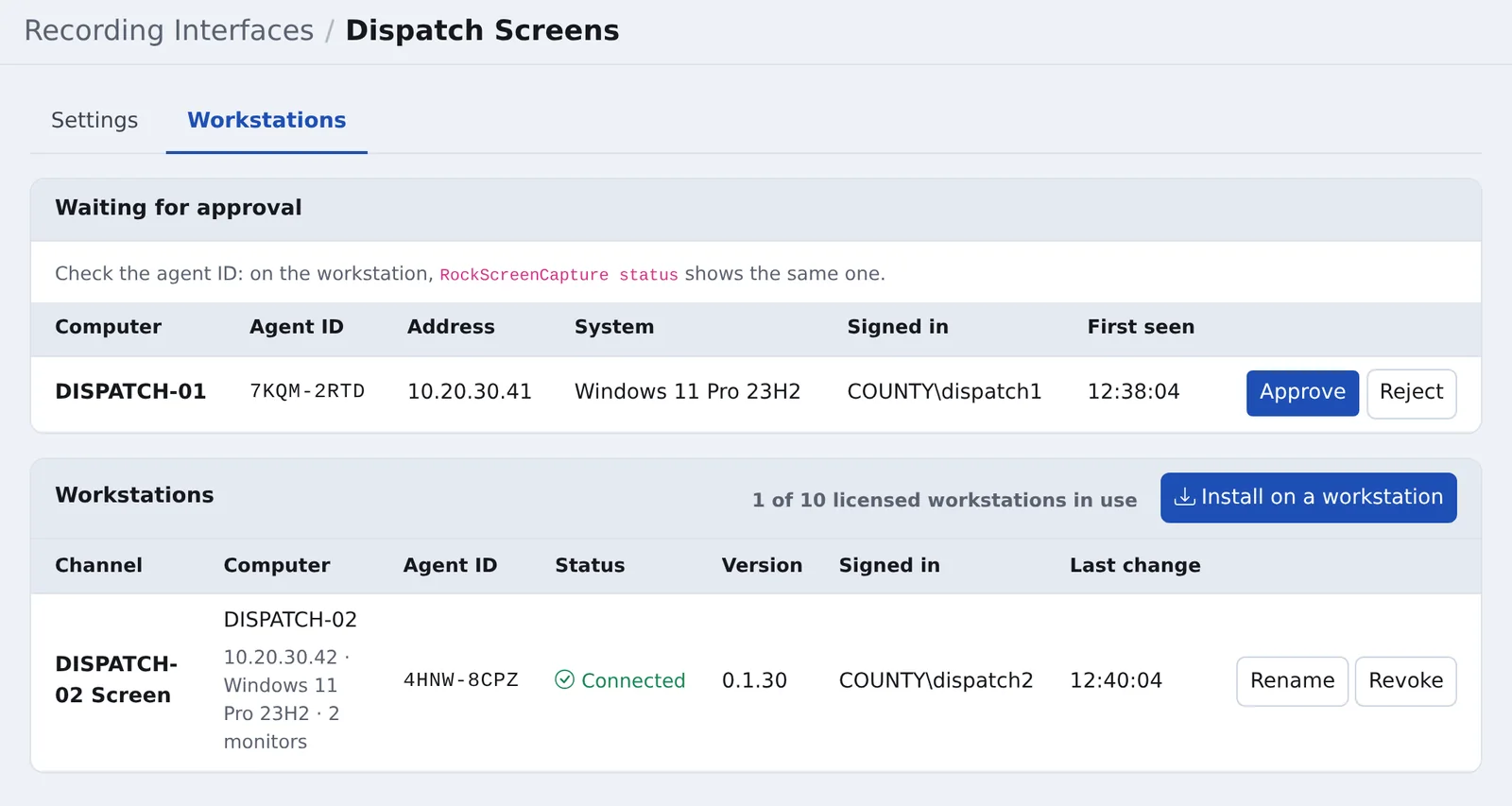
- Check the Agent ID matches the one the workstation shows.
- Click Approve and choose A new channel (named after the computer, which you can change) or An existing channel, to replace a workstation that was there before.
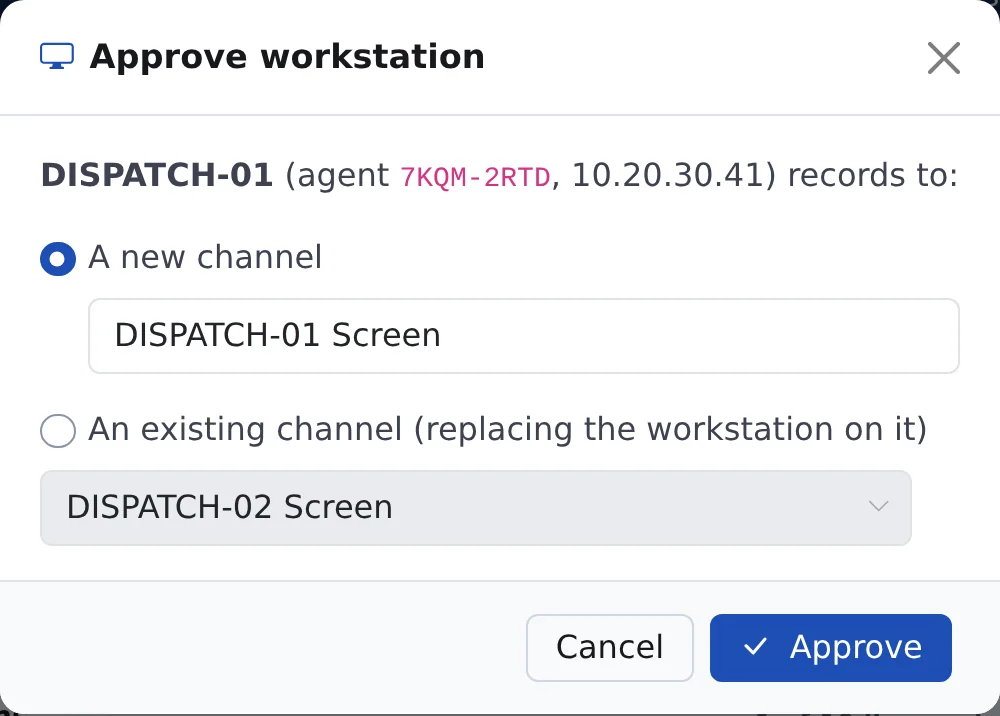
Recording starts within seconds. Reject turns a workstation away. Workstations left waiting are dropped after 7 days.
To skip this step for your own workstations, enter their network under Approve workstations automatically from these networks on the Settings tab (for example 10.20.30.0/24). Each one then gets its own channel automatically, while the license has room.
On the workstation
The status window (Start menu > RockRecorder Screen Capture) shows whether it's connected and recording, the recorder and channel, the agent ID, the signed-in user and the monitors.
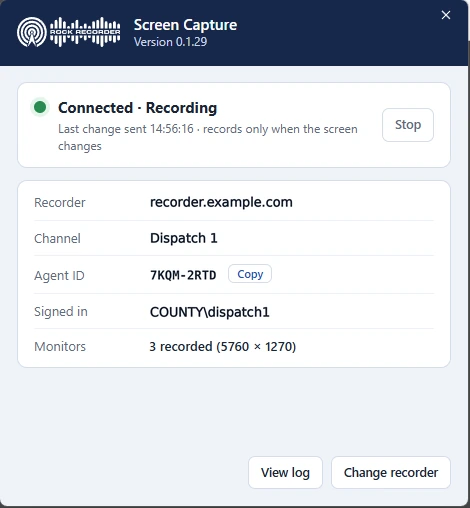
- Stop turns recording off on this workstation until it's started again here. It needs Windows administrator rights. RockRecorder then shows the workstation as Offline.
- View log and Change recorder need administrator rights too.
From a command prompt
Everything in the status window can also be done from a Command Prompt run as administrator on the workstation, which is handy over a remote session or in a script. Go to the program's folder first:
cd "C:\Program Files\RockRecorder Screen Capture"
| Command | What it does |
|---|---|
RockScreenCapture status |
Shows the agent ID, the recorder, and whether it's connected and recording |
RockScreenCapture set-server recorder.example.com |
Connects to a different RockRecorder server |
RockScreenCapture stop |
Stops recording on this workstation. It stays off, even after a restart, until it's started again |
RockScreenCapture start |
Starts recording again |
RockScreenCapture trust-reset |
Forgets RockRecorder's certificate, after the server's certificate was replaced |
RockScreenCapture uninstall |
Removes the service. The workstation keeps its identity, so a reinstall needs no new approval; add --remove-data to delete that too |
RockScreenCapture version |
Shows the installed version |
Settings
On the interface's Settings tab:
| Setting | What it does | Default |
|---|---|---|
| Recordings start and keep going with | Motion and keyboard or mouse, motion only, or keyboard or mouse only | Motion and keyboard or mouse |
| A recording ends after no activity for | 30 seconds to 5 minutes | 1 minute |
| Longest recording | Longer activity continues in a new recording | 30 minutes |
| Changes sent at most | How often changes on screen are sent, 1 to 10 times a second | 2 times a second |
| Image quality | 60 to 90, or lossless (larger) | 80 |
| Keep workstations up to date | Workstations update themselves when a new version is uploaded | Ticked |
Changes reach the workstations within about 10 seconds.
Managing workstations
On the Workstations tab, each workstation shows its channel, computer, status (Connected, Offline), version, signed-in user and last change.
- Rename renames its channel. New recordings use the new name; earlier ones keep theirs.
- Revoke stops recording within seconds. Its recordings and channel are kept.
- Update to … updates one workstation now, when Keep workstations up to date is off.
Approving, rejecting, revoking and renaming are all written to the audit log. To remove the program from a workstation, uninstall it in Windows' Apps & features, and revoke the workstation in RockRecorder.
Playing recordings
On the Recordings page, a Screen Capture recording opens in the screen player:
- Follow shows the monitor being used; with several monitors, All or 1, 2… shows them all or one.
- Zoom with the mouse wheel or + / −, drag to move, double-click for actual size.
- Skip to the previous or next change, play at up to 16× speed, or go full screen.
Download gives a .html file that plays the recording in any web browser, offline, with nothing to install. Screen Capture recordings play on a computer, not on phones, and they can be encrypted and archived like audio.
If it doesn't work
| Problem | What to check |
|---|---|
| The workstation never appears | On the workstation, open https:// and the server's address in a browser: it must reach RockRecorder on port 443. Check the address in the status window, and that the RockRecorder Screen Capture service is running |
| It stays Waiting for approval | Approve it on the Workstations tab. A reinstalled workstation that lost its identity needs approving again, onto its existing channel |
| Offline | The workstation is off, can't reach the server, or recording was stopped in its status window |
| Connected, but no recordings | Nothing is happening on screen, or Recordings start and keep going with doesn't match how it's used |
The workstation's log is C:\ProgramData\RockRecorder\ScreenCapture\rr-screen.log; the server's is /opt/rockrecorder/logs/screen.log.