RockRecorder can encrypt recordings with AES-256 as they're recorded, on the channels you choose. In RockRecorder they play, download and go into reports as usual. A file copied off the server, or the whole drive, can't be played without the key.
You need to be a SuperAdmin, and the server needs the encryption license.
Back up the key. Recordings only play with their key. If the server is lost and there's no backup of the key, its encrypted recordings are lost too.
Turn it on
- Go to Administration > Access & Security > Encryption.
- Click Add key and choose Generate a key. You can give it a name, such as the year.
- Click Download backup, choose a password (at least 8 characters) and save the file somewhere safe, off this server. Keep the password with it: it can't be recovered.
- Under Encrypted channels, tick the channels to encrypt. All type channels also covers channels of that type added later, such as new Solacom positions.
- Click Save in the bar at the bottom.
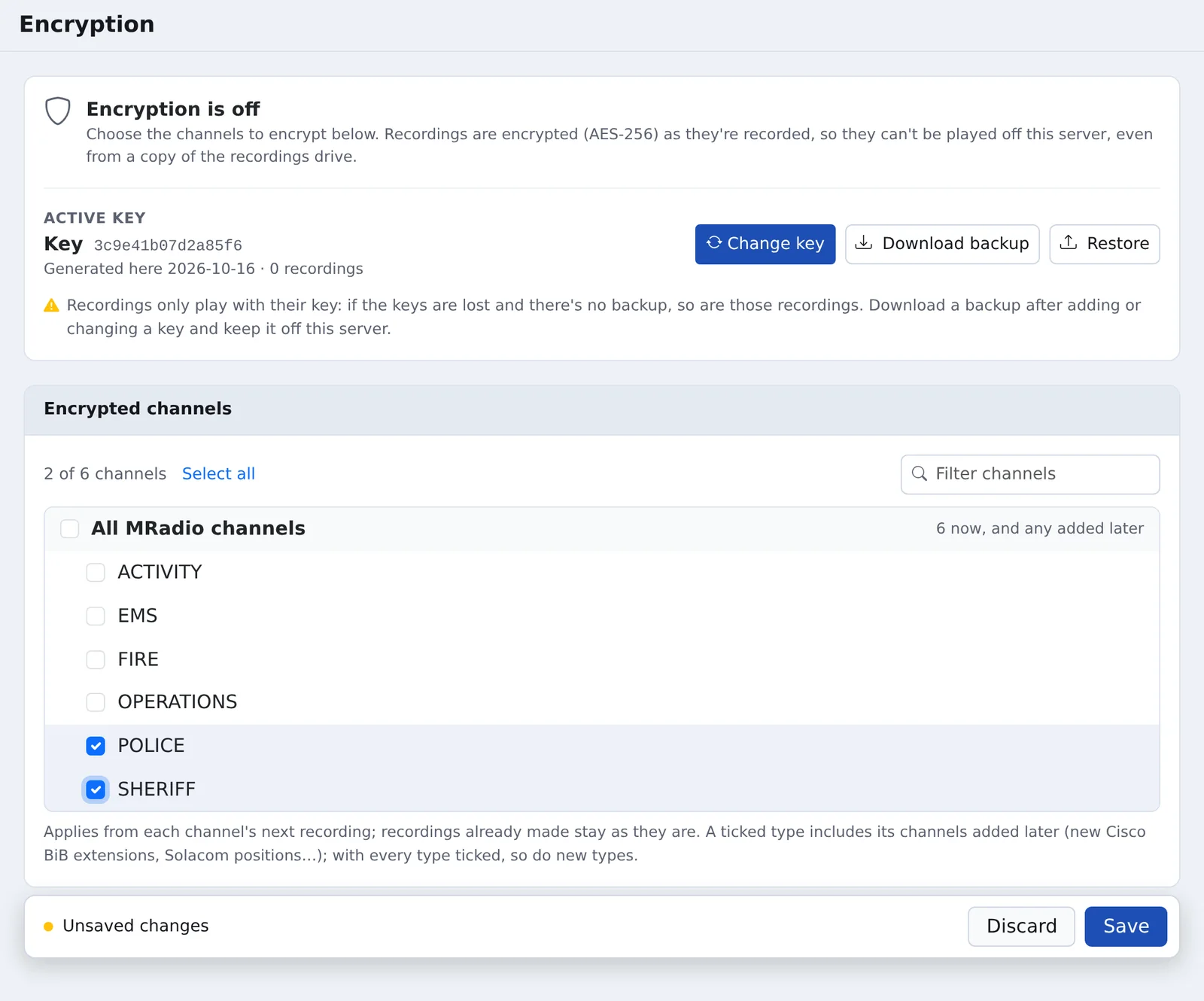
Encryption applies from each channel's next recording. Recordings already made stay as they are, and turning a channel off doesn't decrypt its old recordings.
Change the key
Click Change key to generate a new one or enter one (64 hex digits). New recordings use the new key, and the old one is kept under Older keys to play the recordings made with it. Download a new backup after every change.
A key that no recording uses can be deleted. Keys that recordings use can't be.
Moving to a new server
The keys are locked to the server they're on (using its TPM chip if it has one), so copying the key file to another server doesn't work. Use the backup instead:
- On the new server, go to Administration > Access & Security > Encryption and click Restore.
- Choose the backup file and enter its password.
The keys are added and the recordings play again.
Archiving encrypted recordings
Archiving always sends encrypted recordings encrypted. There's no option to send them decrypted, so a copy is never less protected than the original.
To an archive server
The copies arrive with a red ! ("No key available") until the archive server has the key. To make them play:
- On this server, Download backup from the Encryption page.
- On the archive server, go to Administration > Access & Security > Encryption, click Restore, and choose that file.
Recordings already received play straight away, and so do the ones that arrive later.
After changing the key on this server, restore the new backup on the archive server too. Otherwise new copies arrive with the red ! again. Keys are identified the same way on every server, so a backup with the right key works on any of them.
To a share or folder
The files keep their usual names and folders, and the day's index.csv (time, channel, alias, radio ID, length) is still readable. But the audio is encrypted: the files can't be played by a media player, or anywhere outside RockRecorder. If people need to listen to copies on a share, don't encrypt those channels, or archive to a RockRecorder archive server instead.
Before deleting an old key
A key that no recording on this server uses can be deleted, but archived copies may still need it. Keep a backup that includes it for as long as those copies are kept.
Recordings without their key
If a recording's key isn't on the server, it shows a red ! next to the channel name ("No key available"). It won't play, and it's left out of downloads, ZIPs and reports. Restore a key backup that has its key, and it plays again.
If something goes wrong
If a recorder can't encrypt a chosen channel (no license, no key), it records the channel unencrypted rather than lose the audio, and logs an error.
Changes to keys and to which channels are encrypted are written to the audit log.