Archiving sends copies of recordings somewhere else, as they're recorded or once a day. Each place is a destination:
| Destination | What it's for |
|---|---|
| RockRecorder archive server | Another RockRecorder that keeps the copies, where they can be searched and played like its own |
| Network share (SMB) | A NAS or Windows share |
| Folder on this server | A USB drive, a disk, or an NFS share mounted on the server |
Nothing is ever deleted from a destination. It keeps its copies for as long as it's set to, even after this server's cleanup deletes the originals.
You need to be a SuperAdmin, and the server needs the archiving license. The archive server itself doesn't need one.
Add a destination
- Go to Administration > System > Archiving and click Add destination.
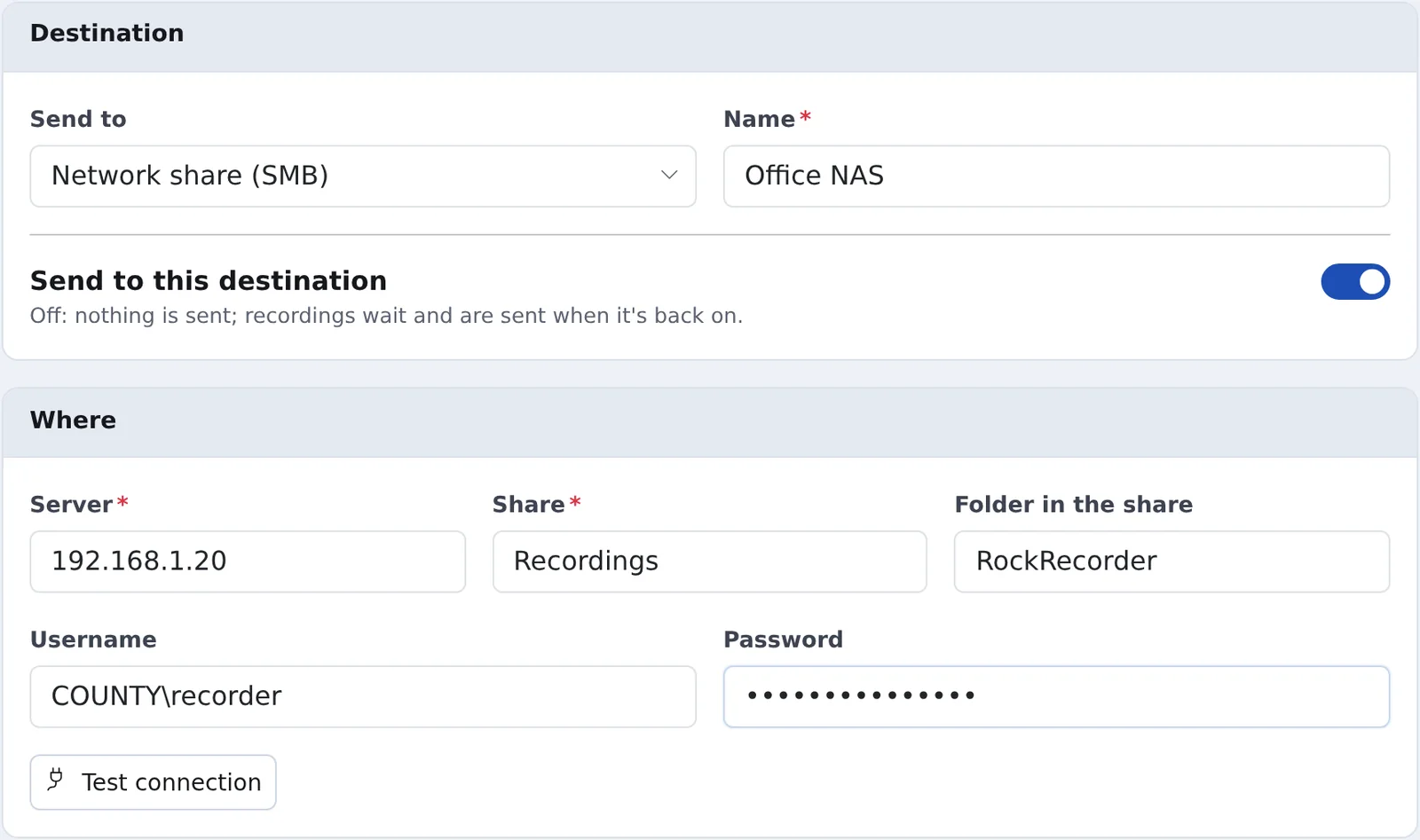
- Choose where to Send to, give it a Name, and fill in where it is:
- Archive server: its address and its Archive key. See Set up the archive server.
- Network share: the Server, Share, an optional Folder in the share, and a Username (
DOMAIN\useroruser) and Password. - Folder: the folder where the drive or share is mounted, such as
/mnt/archive. It can't be inside the recordings folder.
- Click Test connection. A share or folder gets a test file. An archive server shows its name, version and certificate.
- Choose the channels: all of them, all channels of a type (this includes ones added later), or single channels.
- Choose When to send: As they're recorded, or Once a day at a set time, such as after hours.
- Choose What to send: new recordings only, or also the last so many days, or everything since a date. Older recordings are sent oldest first, alongside new ones.
- Click Create destination.
Keep an eye on it
The Archiving page shows each destination's status: Up to date, Sending: N waiting, the next daily send, or Can't send with the reason. Sent shows the last send and anything skipped or failed.
- Pause a destination with the Send to this destination switch on its page. Recordings wait, and are sent when it's back on.
- Send now sends a daily destination's waiting recordings straight away.
- Send again (on the destination's page) re-sends from an earlier date. Copies already there are skipped.
- Remove stops sending. What's already there stays there.
After a network or server outage, archiving carries on where it stopped. A recording that fails 5 times is skipped and counted under Sent. If a destination keeps failing for 15 minutes or falls behind, it shows on System Status, and System Alerts can email you.
What's on a share or folder
Copies are sorted by channel and day, so people can browse them without RockRecorder:
Dispatch 1/2026/10/16/Dispatch 1_Car 31_rx_20261016_104531_123.wav
Dispatch 1/2026/10/16/index.csv
Each day folder has an index.csv listing its recordings: local and UTC time, channel, alias, radio ID, direction, length, emergency, and file name. Each recording's details are also stored inside its WAV file.
Set up the archive server
On the RockRecorder that will keep the copies:
- Go to Administration > System > Archiving.
- Under This server as an archive server, turn on Accept recordings from other RockRecorder servers.
- Copy the Archive key and enter it, with this server's address, in the destination on each sending server.
Received recordings appear under their channels, of type Archived. Give those channels to groups so people can see them. Servers sending here lists who is sending and how many recordings.
The sending server trusts the archive server's certificate when the destination is saved. If the certificate changes later, sending stops until someone clicks Test connection and saves again. New key makes a new archive key, and servers still using the old one are no longer accepted.
Encrypted recordings
Encrypted recordings are always archived encrypted: to an archive server, a share, or a folder.
- On an archive server they play once you restore this server's key backup there. See Encrypting recordings.
- On a share or folder the files keep their names and the
index.csvis still readable, but the audio can't be played outside RockRecorder.