RockRecorder can send recordings to AssemblyAI, an AI speech-to-text service, and save the text as each recording's transcription. You can then read a call before listening to it, and find recordings by what was said.
It's optional and off until a SuperAdmin turns it on. It uses your own AssemblyAI account, so AssemblyAI bills you directly for what's transcribed.
With AI transcription on, the audio of the recordings it transcribes leaves your network and goes to AssemblyAI. Everything else stays on your server. By default, RockRecorder deletes the audio and the transcript at AssemblyAI as soon as the text is back.
Before you start
- An AssemblyAI account and an API key from it (in your AssemblyAI account, under API Keys).
- The RockRecorder server can reach AssemblyAI on the internet (HTTPS).
Turn it on
- Go to Administration > Recording > AI Transcription.
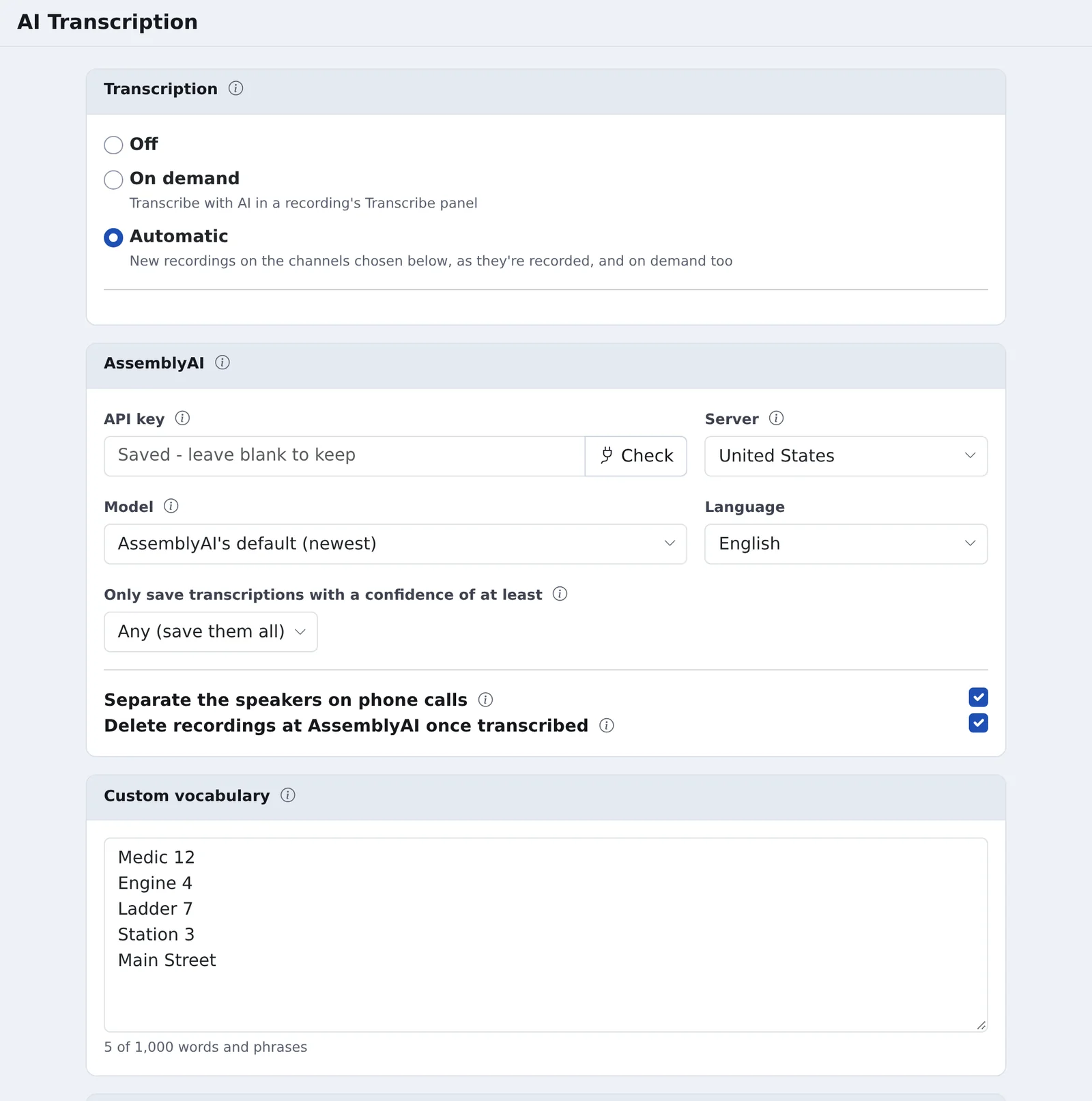
- Under AssemblyAI, paste the API key and click Check.
- Choose the Server: United States or European Union, where AssemblyAI processes the audio.
- Choose how it runs, under Transcription:
- On demand: Admins and SuperAdmins click Transcribe with AI in a recording's Transcribe panel (Listeners read transcriptions but don't send recordings or edit the text).
- Automatic: also every new recording on the channels you choose under Automatic, as it's recorded. Skip recordings shorter than leaves out very short ones. Only recordings made from now on are sent.
- Click Save.
Make it more accurate
- Custom vocabulary: add the words the AI should know, one per line: unit and station names, street names, codes, and names it gets wrong (for example Medic 12, Engine 4). This is the best way to fix words it keeps missing.
- Language: the language your recordings are in.
- Model: AssemblyAI's default follows their newest model without a RockRecorder update. You can also choose a fixed one.
- Separate the speakers on phone calls (ticked by default): phone calls come out with each speaker on their own line, as Speaker A and Speaker B. On Cisco BiB, Speaker A is the agent.
- Only save transcriptions with a confidence of at least: leaves recordings alone when AssemblyAI isn't sure of the text.
What people see
- The AI's text is marked with a ✦ in the Transcribe panel (hover for the confidence and the model), and AI transcription in Inspect, until someone edits it.
- A transcription someone typed is never replaced unless they choose to. A recording with no speech in it is left as it was.
- On the Recordings page's Search tab, Words said finds recordings by their transcription, and Transcription can narrow to recordings with an AI transcription nobody has edited.
- Every edit to a transcription is written to the audit log, with the text before and after. Only Admins and SuperAdmins can edit or delete a transcription.
- If AssemblyAI can't be reached five times in a row, automatic transcription pauses for five minutes and tries again; transcriptions asked for by hand still try straight away.
The AI Transcription page shows what's waiting, what was done and what failed today, and this month's number of recordings and hours of audio, so you can keep an eye on the cost.
Privacy
- Encrypted recordings can be transcribed. They're decrypted only as they're sent, and no unencrypted copy is saved on the server.
- Delete recordings at AssemblyAI once transcribed (ticked by default) removes the audio and the transcript from AssemblyAI as soon as the text is back; one that couldn't be deleted at the time (a network error, or a transcription stopped halfway) is deleted on a later pass. Unticked, AssemblyAI keeps them in your account under its data retention.
- HIPAA: if your agency is covered by HIPAA, AssemblyAI offers a Business Associate Agreement (BAA). It isn't automatic: sign it with AssemblyAI before sending any recordings that may contain protected health information. On a paid AssemblyAI plan you can sign it yourself on the Data Controls page of your AssemblyAI dashboard; otherwise, request it from AssemblyAI's sales team. The BAA is between your agency and AssemblyAI, because RockRecorder uses your own AssemblyAI account.