Work down this list. Most problems are found in the first three steps.
1. Is the channel quiet, or broken?
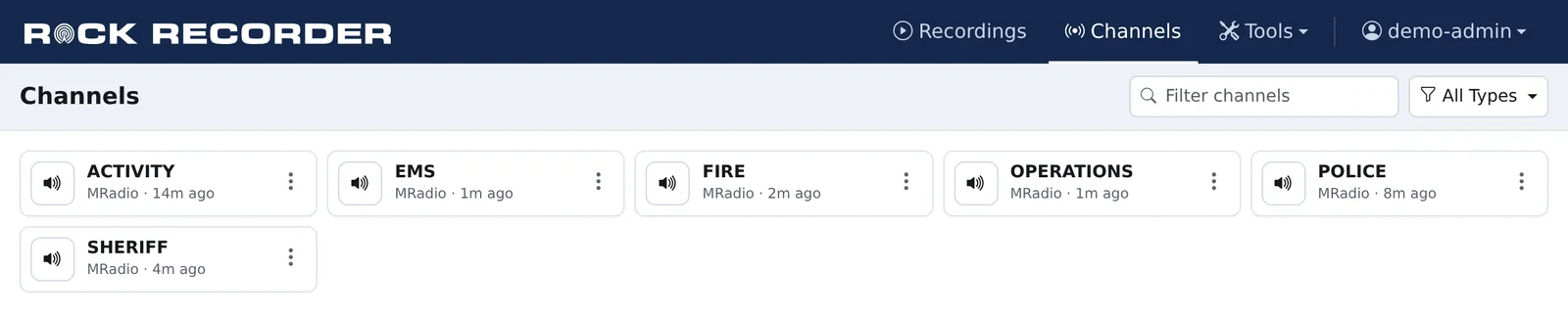
On the Channels page, each channel shows when its last recording was ("5m ago"), or No recordings, or Disabled. A channel only records while someone talks, and transmissions shorter than 0.8 seconds aren't kept. A quiet channel at night is normal.
Recordings appear when they finish. A long phone call shows up when it ends.
2. Is the recorder running?
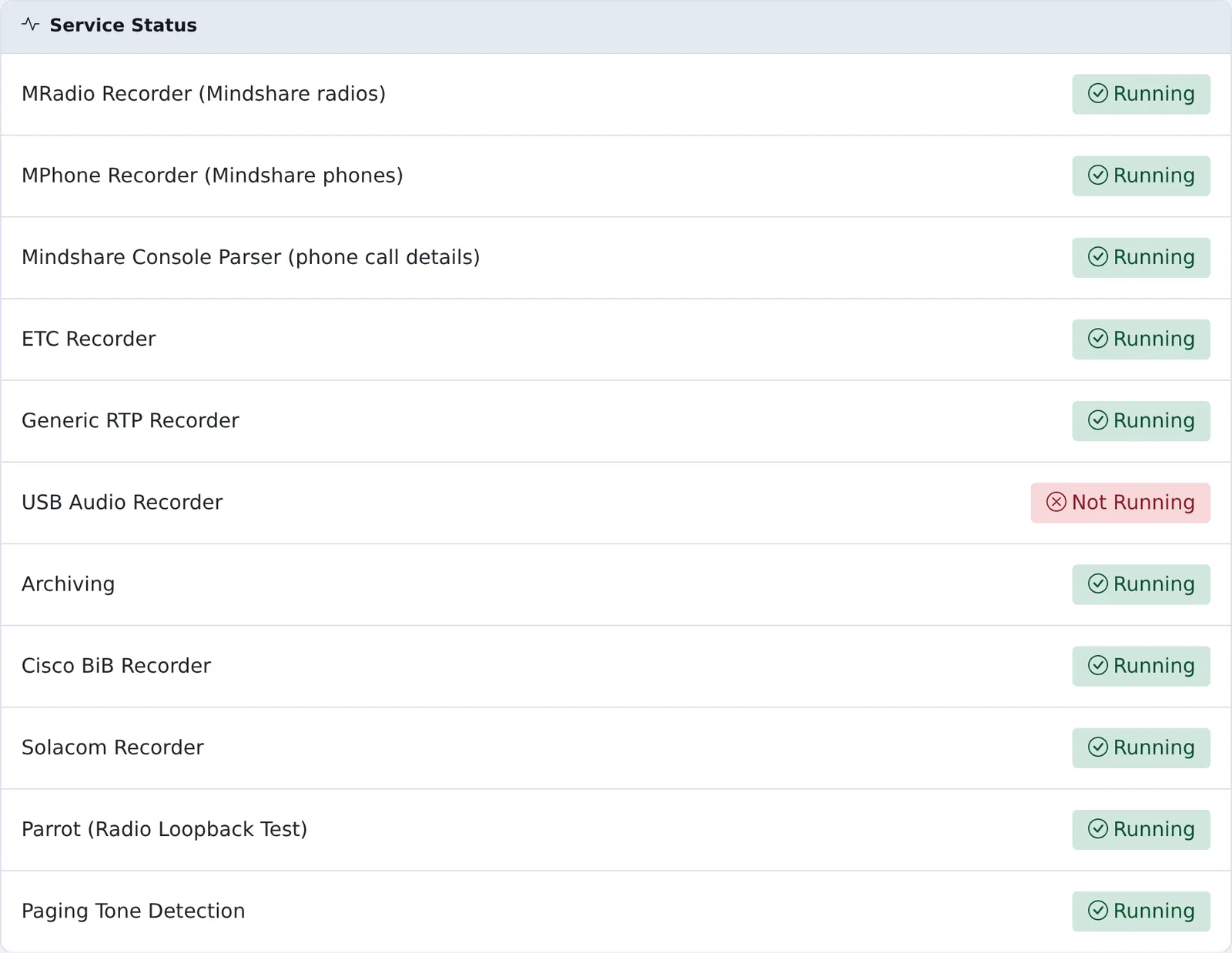
Go to Administration > System > System Status. Under Service Status, the recorder for that system should say Running.
If it says Not Running, a SuperAdmin can start it from the Manage tab (Start or Restart). If it stops again, check the license: a recorder the server isn't licensed for doesn't run and isn't listed. Administration > License shows what's licensed.
3. Is the channel set up and applied?
Go to Administration > Recording > Recording Interfaces and open the channel's interface.
- The interface's Record on this interface switch is on, and the channel is Enabled.
- The interface's Network card (NIC) is the one on the radio or phone network.
- The multicast address and ports match what the radio or phone system sends.
- No Not applied in the list. Saved changes only take effect after you click Apply.
4. Is the audio reaching the server?
Radio and phone systems usually send audio as multicast, and the network has to deliver it to the recorder's network card. If other channels on the same network record and this one doesn't, check its address and ports. If none record, it's usually the network:
- The switches must forward the multicast groups to the recorder (IGMP snooping and querier set up for that network).
- In a virtual machine, the virtual switch must pass the multicast traffic through to the VM.
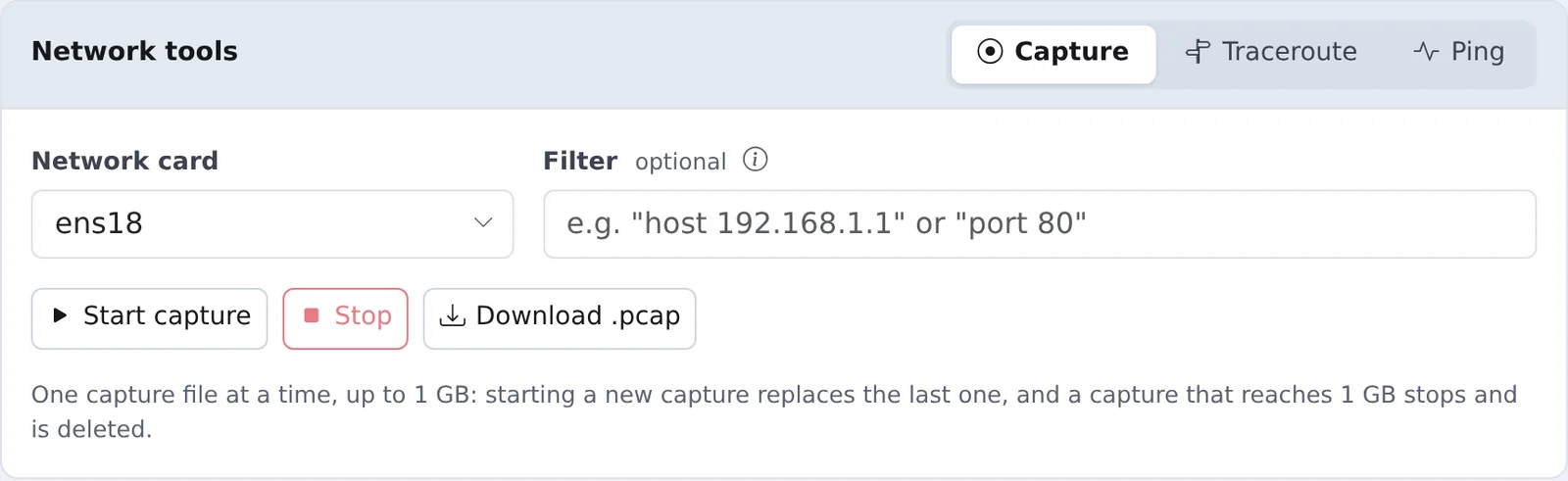
Capture the traffic to be sure. Go to Administration > Access & Security > Network > Tools > Capture. Choose the Network card, enter a Filter such as udp port 5001 (the channel's port), click Start capture, wait while the channel is in use, then Stop and Download .pcap. Open the file in Wireshark. No packets means the audio isn't reaching the server, so the fix is in the network or the sending system.
5. Specific systems
| System | Also check |
|---|---|
| Solacom, Cisco BiB | The phone system sends calls to the recorder's SIP port (5060 by default) and RTP ports, as set on the interface's Settings tab. Cisco BiB uses TCP. Firewalls must allow both |
| Generic RTP | Only G.711 µ-law, A-law and G.729 audio is recorded. Other payload types are ignored |
| USB audio | The device is plugged in. When it's unplugged, the recorder saves what it has and picks the device up again within 5 seconds of it coming back |
6. Look at the log
Over SSH, each recorder has its own log in /opt/rockrecorder/logs/:
| Recorder | Log file |
|---|---|
| Mindshare radio | mradios.log |
| Mindshare phone | mphones.log |
| ETC | etc.log |
| Generic RTP | rtp.log |
| USB audio | usb.log |
| Solacom | solacom.log |
| Cisco BiB | cisco_bib.log |
For example:
tail -n 100 /opt/rockrecorder/logs/mradios.log
Get told next time
Under Administration > Notifications > System Alerts, Recorders not saving emails you when an interface has had no recordings for a number of hours (12 by default). Give an interface that's quiet overnight more hours. A recorder service stopped emails you if a recorder stops.